실행 목적
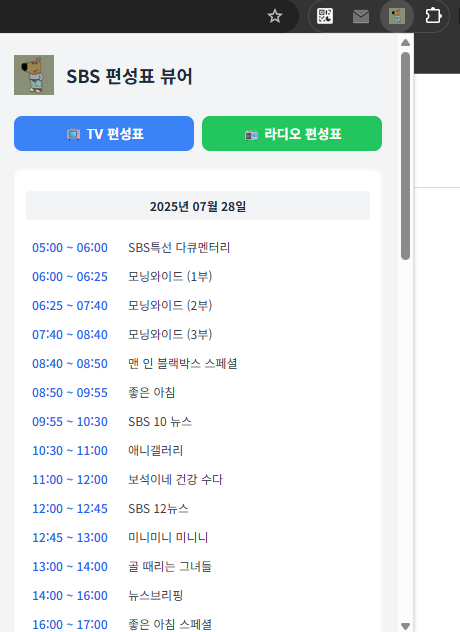
실행일 기준 금일, 작일 SBS TV, radio 의 프로그램명, 방송 시간 확인
- 점검 간 데이터 확인 소요 시간 약 66~75% 감소로 효율성 증진
실제 경로 내 파일

선행 조건
- 크롬 브라우저를 열고 주소창에 chrome://extensions 를 입력하여 확장 프로그램 관리 페이지로 이동합니다.
- 기존에 있던 'SBS 편성표 뷰어'가 있다면 '삭제' 버튼을 눌러 완전히 제거합니다.
- 페이지 오른쪽 상단에 있는 '개발자 모드(Developer mode)' 스위치를 켭니다.
- '압축해제된 확장 프로그램을 로드합니다(Load unpacked)' 버튼을 클릭합니다.
- 파일 탐색기가 열리면, 1단계에서 생성한 sbs-extension 폴더를 선택하고 '폴더 선택' 버튼을 누릅니다.
실행 순서
- 설치가 완료되면 크롬 브라우저 오른쪽 상단 툴바에 아이콘이 추가됩니다.
- 툴바의 아이콘을 클릭하면 편성표 뷰어 팝업창이 나타납니다.
- '📺 TV 편성표' 또는 '📻 라디오 편성표' 버튼을 클릭하면, 잠시 후 해당 채널의 어제와 오늘 편성표를 불러와 화면에 표시합니다.
작성 내용
background.js
// content-script를 페이지에 주입하고 결과를 반환하는 함수
async function scrapeDataFromUrl(url) {
    let tab;
    try {
        // 보이지 않는 새 탭을 생성하여 페이지를 엽니다.
        tab = await chrome.tabs.create({ url: url, active: false });

        // 페이지 로딩이 완료될 때까지 기다립니다.
        await new Promise((resolve, reject) => {
            const maxWaitTime = 15000; // 15초 타임아웃
            const timeout = setTimeout(() => {
                reject(new Error("페이지 로딩 시간 초과"));
            }, maxWaitTime);

            const listener = (tabId, changeInfo) => {
                if (tabId === tab.id && changeInfo.status === 'complete') {
                    clearTimeout(timeout);
                    chrome.tabs.onUpdated.removeListener(listener);
                    resolve();
                }
            };
            chrome.tabs.onUpdated.addListener(listener);
        });

        // 페이지에 content-script.js를 주입하고 실행 결과를 받습니다.
        const results = await chrome.scripting.executeScript({
            target: { tabId: tab.id },
            files: ['content-script.js']
        });

        if (results && results.length > 0) {
            return results[0].result; // content-script.js가 반환한 값
        } else {
            throw new Error("스크립트 실행에 실패했습니다.");
        }
    } finally {
        // 작업이 끝나면 생성했던 탭을 닫습니다.
        if (tab) {
            await chrome.tabs.remove(tab.id);
        }
    }
}

// popup.js로부터 메시지를 수신합니다.
chrome.runtime.onMessage.addListener((request, sender, sendResponse) => {
    if (request.action === "fetchSchedule") {
        scrapeDataFromUrl(request.url)
            .then(response => sendResponse(response))
            .catch(error => sendResponse({ error: error.message }));
        return true; // 비동기 응답을 위해 true를 반환합니다.
    }
});
content-script.js
// 이 함수는 SBS 웹페이지의 컨텍스트에서 실행됩니다.
function scrapeSchedule() {
    const schedule = [];
    // 페이지가 완전히 렌더링된 후이므로, 요소를 찾을 수 있습니다.
    const programElements = document.querySelectorAll('.scheduler_program_w');

    if (programElements.length === 0) {
        return { error: "편성표 요소를 찾을 수 없습니다. 웹사이트 구조가 변경되었을 수 있습니다." };
    }

    programElements.forEach(el => {
        const timeEl = el.querySelector('.spt_hours');
        const titleEl = el.querySelector('.spi_title');
        if (timeEl && titleEl) {
            let programTitle = titleEl.innerText.trim();
            // '보이는 라디오'가 있으면 텍스트 대신 스타일링을 위한 span 태그를 추가합니다.
            if (el.querySelector('.scheduler_label_w_type_bora')) {
                programTitle += ' <span class="bora-tag">보라</span>';
            }
            schedule.push({ time: timeEl.innerText.trim(), program: programTitle });
        }
    });
    return { data: schedule }; // 결과를 객체 형태로 반환
}

// 이 스크립트의 마지막 실행 결과가 executeScript의 반환값이 됩니다.
scrapeSchedule();
manifest.json
{
  "manifest_version": 3,
  "name": "SBS 편성표 뷰어",
  "version": "2.0",
  "description": "SBS TV와 라디오의 어제, 오늘 편성표를 보여줍니다.",
  "permissions": [
    "scripting",
    "tabs"
  ],
  "host_permissions": [
    "https://*.sbs.co.kr/*"
  ],
  "action": {
    "default_popup": "popup.html",
    "default_icon": {
      "16": "images/icon16.png",
      "48": "images/icon48.png",
      "128": "images/icon128.png"
    }
  },
  "icons": {
    "16": "images/icon16.png",
    "48": "images/icon48.png",
    "128": "images/icon128.png"
  },
  "background": {
    "service_worker": "background.js"
  }
}
popup.html
<!DOCTYPE html>
<html lang="ko">
<head>
    <meta charset="UTF-8">
    <title>SBS 편성표</title>
    <link rel="stylesheet" href="style.css">
</head>
<body>
    <div class="container">
        <div class="header">
            <img src="images/icon48.png" alt="아이콘" class="icon">
            <div>
                <h1 class="title">SBS 편성표 뷰어</h1>
                <p id="initial-guide" class="guide-text">보고 싶은 편성표 버튼을 클릭하세요.</p>
            </div>
        </div>
        <div class="button-group">
            <button id="tv-btn" class="btn btn-tv">📺 TV 편성표</button>
            <button id="radio-btn" class="btn btn-radio">📻 라디오 편성표</button>
        </div>
        <div id="schedule-display" class="display-area">
             <div id="loader" class="loader hidden"></div>
             <div id="schedule-content"></div>
        </div>
    </div>
    <script src="popup.js"></script>
</body>
</html>
popup.js
document.addEventListener('DOMContentLoaded', () => {
    const tvBtn = document.getElementById('tv-btn');
    const radioBtn = document.getElementById('radio-btn');
    const scheduleContent = document.getElementById('schedule-content');
    const loader = document.getElementById('loader');
    const initialGuide = document.getElementById('initial-guide');

    tvBtn.addEventListener('click', () => fetchAndDisplaySchedule('tv'));
    radioBtn.addEventListener('click', () => fetchAndDisplaySchedule('radio'));

    const formatDate = (date, format) => {
        const year = date.getFullYear();
        const month = String(date.getMonth() + 1).padStart(2, '0');
        const day = String(date.getDate()).padStart(2, '0');
        if (format === 'param') return `${year}${month}${day}`;
        return `${year}년 ${month}월 ${day}일`;
    };

    // 백그라운드 스크립트에게 데이터 요청 메시지를 보내는 함수
    async function getScheduleData(url) {
        return new Promise((resolve, reject) => {
            chrome.runtime.sendMessage({ action: "fetchSchedule", url: url }, (response) => {
                if (chrome.runtime.lastError) {
                    reject(new Error(chrome.runtime.lastError.message));
                } else if (response && response.error) {
                    reject(new Error(response.error));
                } else {
                    resolve(response.data);
                }
            });
        });
    }

    async function fetchAndDisplaySchedule(type) {
        scheduleContent.innerHTML = '';
        if(initialGuide) initialGuide.style.display = 'none';
        loader.classList.remove('hidden');

        try {
            const today = new Date();
            const yesterday = new Date(today);
            yesterday.setDate(today.getDate() - 1);

            const todayParam = formatDate(today, 'param');
            const yesterdayParam = formatDate(yesterday, 'param');

            const baseUrl = type === 'tv'
                ? 'https://www.sbs.co.kr/schedule/index.html?type=tv&channel=SBS&pmDate='
                : 'https://www.sbs.co.kr/schedule/index.html?type=ra&channel=Power&pmDate=';

            const yesterdayData = await getScheduleData(baseUrl + yesterdayParam);
            const todayData = await getScheduleData(baseUrl + todayParam);

            let html = createScheduleListHtml(formatDate(yesterday), yesterdayData);
            html += createScheduleListHtml(formatDate(today), todayData);
            scheduleContent.innerHTML = html;

        } catch (error) {
            console.error("Error in fetchAndDisplaySchedule:", error);
            scheduleContent.innerHTML = `
                <div class="error-box">
                    <p class="error-title">오류: 편성표 로딩 실패</p>
                    <p class="error-message">${error.message}. 확장 프로그램을 새로고침하거나 재설치해 보세요.</p>
                </div>
            `;
        } finally {
            loader.classList.add('hidden');
        }
    }

    function createScheduleListHtml(dateStr, data) {
        let listHtml = `<div class="date-divider">${dateStr}</div>`;
        listHtml += '<ul class="schedule-list">';

        if (!data || data.length === 0) {
            listHtml += '<li class="no-data">편성 정보가 없습니다.</li>';
        } else {
            data.forEach((item, index) => {
                const startTime = item.time;
                const endTime = (index < data.length - 1) ? data[index + 1].time : '';
                const timeDisplay = endTime ? `${startTime} ~ ${endTime}` : `${startTime} ~`;

                listHtml += `
                    <li class="schedule-item">
                        <span class="time-info">${timeDisplay}</span>
                        <span class="program-title">${item.program}</span>
                    </li>
                `;
            });
        }
        listHtml += '</ul>';
        return listHtml;
    }
});
style.css
/* 기본 스타일 */
body {
    font-family: 'Noto Sans KR', sans-serif;
    width: 400px;
    background-color: #f3f4f6; /* bg-gray-100 */
    margin: 0;
    padding: 0;
}

.container {
    padding: 1rem; /* p-4 */
}

/* 헤더 */
.header {
    display: flex;
    align-items: center;
    text-align: left;
    margin-bottom: 1rem; /* mb-4 */
}

.icon {
    height: 2.5rem; /* h-10 */
    width: 2.5rem; /* w-10 */
    margin-right: 0.75rem; /* mr-3 */
}

.title {
    font-size: 1.125rem; /* text-lg */
    font-weight: 700; /* font-bold */
    color: #1f2937; /* text-gray-800 */
}

.guide-text {
    font-size: 0.75rem; /* text-xs */
    color: #6b7280; /* text-gray-500 */
}

/* 버튼 */
.button-group {
    display: grid;
    grid-template-columns: repeat(2, minmax(0, 1fr));
    gap: 0.5rem; /* gap-2 */
    margin-bottom: 1rem; /* mb-4 */
}

.btn {
    width: 100%;
    color: white;
    font-weight: 700;
    padding: 0.5rem 1rem; /* py-2 px-4 */
    border-radius: 0.5rem; /* rounded-lg */
    border: none;
    cursor: pointer;
    transition: background-color 0.2s;
}

.btn-tv {
    background-color: #3b82f6; /* bg-blue-500 */
}
.btn-tv:hover {
    background-color: #2563eb; /* hover:bg-blue-600 */
}

.btn-radio {
    background-color: #22c55e; /* bg-green-500 */
}
.btn-radio:hover {
    background-color: #16a34a; /* hover:bg-green-600 */
}

/* 편성표 표시 영역 */
.display-area {
    margin-top: 1rem; /* mt-4 */
    text-align: left;
    min-height: 200px;
    background-color: white;
    padding: 0.75rem; /* p-3 */
    border-radius: 0.5rem; /* rounded-lg */
    box-shadow: inset 0 2px 4px 0 rgba(0, 0, 0, 0.05); /* shadow-inner */
}

.hidden {
    display: none;
}

.loader {
    border: 4px solid #f3f3f3;
    border-top: 4px solid #3498db;
    border-radius: 50%;
    width: 32px;
    height: 32px;
    animation: spin 1s linear infinite;
    margin: 20px auto;
}
@keyframes spin {
    0% { transform: rotate(0deg); }
    100% { transform: rotate(360deg); }
}

/* 편성표 목록 */
.date-divider {
    margin-top: 0.75rem; /* my-3 */
    margin-bottom: 0.75rem;
    padding: 0.375rem; /* p-1.5 */
    background-color: #f3f4f6; /* bg-gray-100 */
    color: #1f2937; /* text-gray-800 */
    font-weight: 700;
    border-radius: 0.25rem; /* rounded */
    text-align: center;
    font-size: 0.75rem; /* text-xs */
}

.schedule-list {
    list-style: none;
    padding: 0;
    margin: 0;
}

.schedule-item {
    display: flex;
    align-items: baseline;
    padding: 0.375rem; /* p-1.5 */
    border-radius: 0.25rem; /* rounded */
}
.schedule-item:hover {
    background-color: #f9fafb; /* hover:bg-gray-50 */
}

.time-info {
    font-weight: 500; /* font-medium */
    color: #2563eb; /* text-blue-600 */
    width: 6rem; /* w-24 */
    flex-shrink: 0; /* shrink-0 */
}

.program-title {
    color: #374151; /* text-gray-700 */
}

.no-data {
    color: #9ca3af; /* text-gray-400 */
    text-align: center;
    padding-top: 0.5rem; /* py-2 */
    padding-bottom: 0.5rem;
}

/* 오류 메시지 */
.error-box {
    text-align: center;
    color: #dc2626; /* text-red-600 */
    padding: 0.75rem; /* p-3 */
}
.error-title {
    font-weight: 700;
}
.error-message {
    font-size: 0.875rem; /* text-sm */
    margin-top: 0.5rem; /* mt-2 */
    color: #4b5563; /* text-gray-600 */
}

/* '보라' 태그 스타일 (신규 추가) */
.bora-tag {
    display: inline-block;
    background-color: #f97316; /* 주황색 */
    color: white;
    padding: 1px 5px;
    border-radius: 4px;
    font-size: 0.7rem;
    font-weight: 700;
    margin-left: 6px;
    vertical-align: middle; /* 텍스트와 세로 정렬을 맞춤 */
}
README.txt
SBS 편성표 뷰어 (크롬 확장 프로그램)
SBS TV와 파워FM 라디오의 어제, 오늘 편성표를 실시간으로 크롤링하여 보여주는 크롬 확장 프로그램입니다.

⚙️ 설치 방법 (중요)
기존에 설치된 확장 프로그램이 있다면 반드시 먼저 삭제하고 아래 순서대로 새로 설치해주세요.

1단계: 파일 준비
프로젝트는 아래와 같은 폴더 구조를 가져야 합니다. 각 파일을 해당 위치에 맞게 준비해주세요.

최종 폴더 구조:

sbs-extension/
├── images/
│   ├── icon16.png
│   ├── icon48.png
│   └── icon128.png
├── manifest.json
├── popup.html
├── popup.js
├── background.js
├── content-script.js
├── style.css
└── README.txt

2단계: 크롬에 확장 프로그램 설치
크롬 브라우저를 열고 주소창에 chrome://extensions 를 입력하여 확장 프로그램 관리 페이지로 이동합니다.

기존에 있던 'SBS 편성표 뷰어'가 있다면 '삭제' 버튼을 눌러 완전히 제거합니다.

페이지 오른쪽 상단에 있는 '개발자 모드(Developer mode)' 스위치를 켭니다.

'압축해제된 확장 프로그램을 로드합니다(Load unpacked)' 버튼을 클릭합니다.

파일 탐색기가 열리면, 1단계에서 생성한 sbs-extension 폴더를 선택하고 '폴더 선택' 버튼을 누릅니다.

> 사용 방법
설치가 완료되면 크롬 브라우저 오른쪽 상단 툴바에 아이콘이 추가됩니다.

툴바의 아이콘을 클릭하면 편성표 뷰어 팝업창이 나타납니다.

'📺 TV 편성표' 또는 '📻 라디오 편성표' 버튼을 클릭하면, 잠시 후 해당 채널의 어제와 오늘 편성표를 불러와 화면에 표시합니다.

중요사항 : 폴더와 파일 중 하나라도 없을 경우 동작하지않을 수 있습니다.

================================================================================

각 파일의 역할과 기능

📋 manifest.json - 확장프로그램 설정 파일
- 확장프로그램의 기본 정보 (이름, 버전, 설명)
- 권한 설정: scripting, tabs, SBS 사이트 접근 권한
- 팝업 UI와 아이콘 설정
- 백그라운드 스크립트 등록

🔧 background.js - 백그라운드 서비스 워커
- 핵심 기능: SBS 웹사이트에서 편성표 데이터 크롤링
- 보이지 않는 탭을 생성하여 SBS 페이지 접근
- content-script를 주입하여 데이터 추출
- popup.js와 메시지 통신으로 데이터 전달
- 15초 타임아웃 설정으로 안정성 확보

📊 content-script.js - 웹페이지 데이터 추출
- SBS 웹페이지의 DOM에서 편성표 정보 추출
- .scheduler_program_w 클래스에서 시간과 프로그램명 파싱
- "보이는 라디오" 프로그램에 특별 태그 추가
- 추출된 데이터를 구조화하여 반환

🎨 popup.html - 사용자 인터페이스
- 확장프로그램 팝업창의 HTML 구조
- TV/라디오 편성표 선택 버튼
- 로딩 스피너와 결과 표시 영역
- 깔끔한 한국어 UI 제공

⚡ popup.js - 팝업 로직 처리
- 버튼 클릭 이벤트 처리
- 어제/오늘 날짜 계산 및 URL 생성
- background.js와 메시지 통신
- 편성표 데이터를 HTML로 변환하여 표시
- 에러 처리 및 로딩 상태 관리

🎨 style.css - 스타일시트
- 팝업창의 시각적 디자인 (400px 너비)
- 버튼, 편성표 목록, 로딩 스피너 스타일
- "보라" 태그 특별 스타일링
- 반응형 그리드 레이아웃

🖼️ images/ - 아이콘 파일들
- icon16.png: 툴바용 작은 아이콘
- icon48.png: 중간 크기 아이콘
- icon128.png: 확장프로그램 관리 페이지용 큰 아이콘

🔄 동작 원리
1. 사용자가 팝업에서 TV/라디오 버튼 클릭
2. popup.js가 background.js에 데이터 요청 메시지 전송
3. background.js가 SBS 사이트에 숨겨진 탭으로 접근
4. content-script.js가 웹페이지에서 편성표 데이터 추출
5. 추출된 데이터가 popup.js로 전달되어 UI에 표시
실행 결과